Support & Help Tickets
Need help with Timer Pro? Our support team is here to assist with installation, licensing, time studies, line balancing, and everything in between. Choose the option below that best fits your question.
The 7 most common issues and immediate solutions
Most support requests come down to one of these seven issues. Open the one that matches your error message for the fix. If it does not solve the problem, submit a help ticket below.
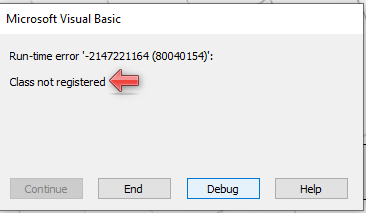
This error may be a result of an incompatibility between 32-bit and 64-bit Excel.
To resolve it, open Video Timer Pro, click Toolbox in the ribbon, then click Excel 64 Bit Registration. You need full admin privileges; otherwise ask your IT team for assistance.

Watch the video: registering after an update from 32-bit to 64-bit Office
If this is a new PC you are setting up, there are also Excel settings you should configure.
There are three possible causes.
A firewall is blocking registration
The most common cause is a firewall blocking automatic access to our registration server, which writes the registration file to your PC. This usually happens with an evaluation or legacy standalone version of Timer Pro, and less often when moving to a subscription without first uninstalling an evaluation or legacy standalone version. In these cases you may be prompted to register using a manual 2-step process. Follow all the steps in the video to complete it.
Watch the video: manual 2-step registration
Timer Pro was installed without full administrator privileges
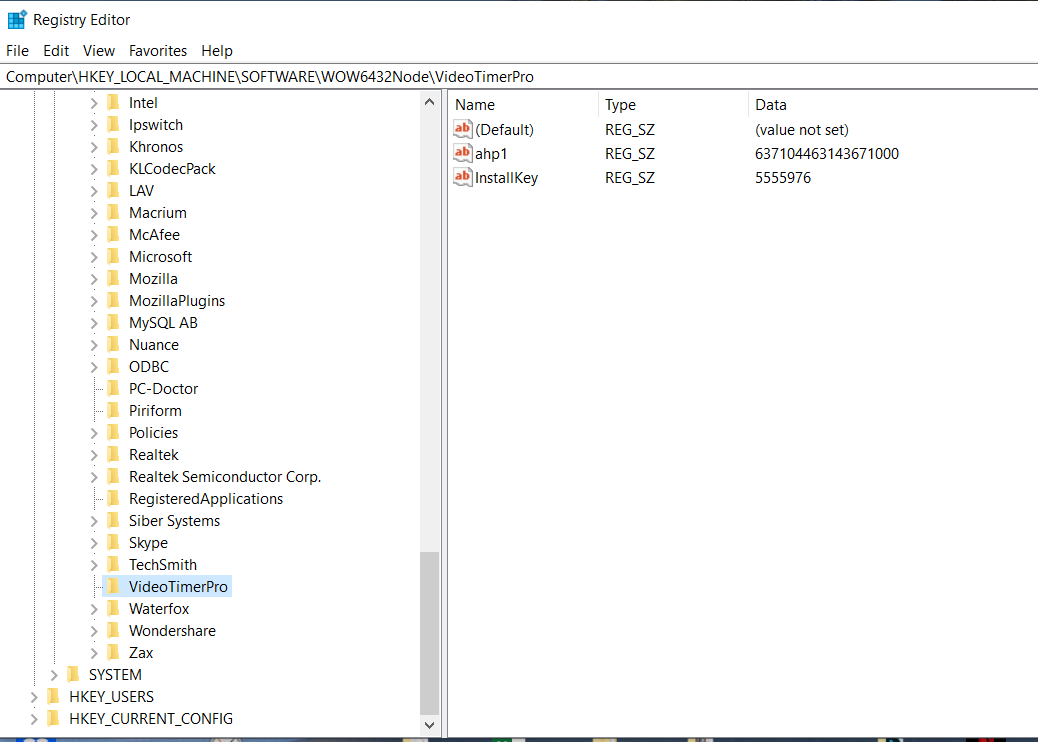
A corrupt registry entry may result from installing Timer Pro without full admin rights, or from moving from one platform to another.
- Open the Registry Editor: click the Windows Start button and type
regedit. - In the left pane, navigate to
ComputerHKEY_LOCAL_MACHINESOFTWAREWOW6432Node. - Locate the
VideoTimerProfolder and delete it. - Uninstall Timer Pro and reinstall it with full admin privileges.
An inactive key must be replaced by an active key
An old version may still be installed, or the wrong key may have been entered during installation. Uninstall Timer Pro, then reinstall it with full admin privileges, making sure the correct key is used. You may need to ask your IT team for assistance.
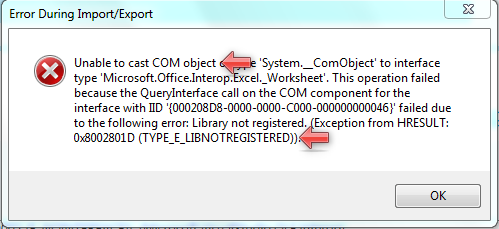
This error may mean Excel is not configured properly. A previous or newer version of Excel may have been installed and then uninstalled, and Microsoft leaves registry entries behind that can interfere with the version currently installed. Your IT team may need to assist.
- Perform a Microsoft Office Quick Repair. See Microsoft’s repair instructions.
- If that does not solve the issue, perform a Microsoft Office Online Repair. The steps are the same as for the Quick Repair, but select Online Repair.
- If the issue remains, check whether you can upgrade to a newer version of Office.
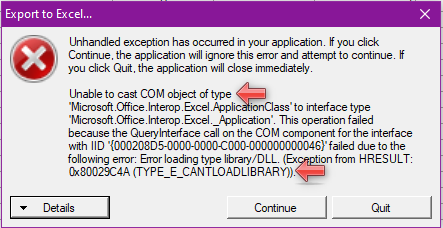
This error may mean Excel is not configured properly. A previous or newer version of Excel may have been installed and then uninstalled, and Microsoft leaves registry entries behind that can interfere with the version currently installed. Your IT team may need to assist.
- Perform a Microsoft Office Quick Repair. See Microsoft’s repair instructions.
- If that does not solve the issue, perform a Microsoft Office Online Repair. The steps are the same as for the Quick Repair, but select Online Repair.
- If the issue remains, check whether you can upgrade to a newer version of Office.
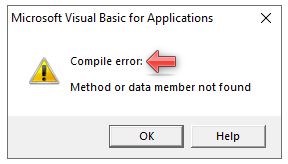
This error can occur when working with Excel workbooks that have been created, or are being automated, by Timer Pro. It means Excel has not been configured to run with Timer Pro, and a few settings need to be changed.
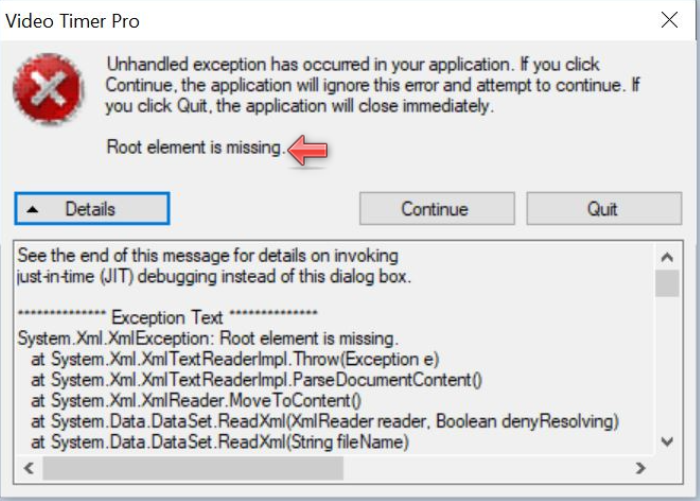
This error is usually caused by a random corruption in one of the support files. To correct it:
- Close Video Timer Pro or Balance.
- Delete the following files:
C:UsersPublicDocumentsApplied Computer ServicesLanguages.xmlC:UsersPublicDocumentsApplied Computer ServicesColorDefaults.xmlC:UsersPublicDocumentsApplied Computer ServicesStudyDefaults.xmlC:UsersPublicDocumentsApplied Computer ServicesLog.xml
- Restart Video Timer Pro.
The user sees “Connection to Floating License server has failed”:
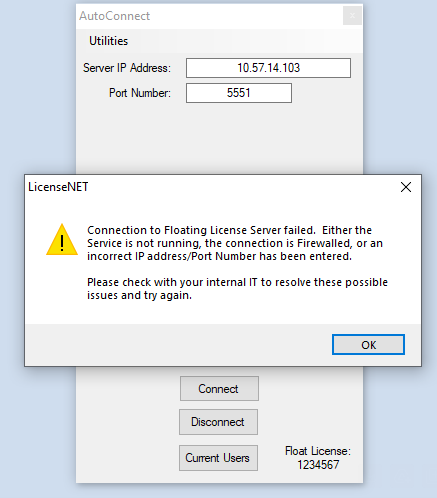
They may also see a message similar to this after clicking OK:
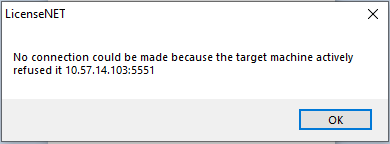
First, find out whether the issue affects one user or all users.
All users are affected: restart the service on the server
- Stop the Timer Pro Floating License Service.
- Delete these log files on the server:
C:UsersPublicDocumentsApplied Computer ServicesTimerProFloatingLicense.xmlC:UsersPublicDocumentsApplied Computer ServicesTimerProFloatingLicenseError.txt
- Restart the Timer Pro Floating License Service, make sure it shows as running, and ask users to try connecting again.
Some users are connecting and running Timer Pro
- Check the input data. On the affected user’s PC, check that the float server IP or domain name and the MAC address shown in the error message are correct. If not, uninstall and reinstall Timer Pro with full admin rights to clear the registration, then enter the correct values.
- Test the connection to the server on port 5551. From the command prompt, ping the server’s IP address, for example
ping 10.10.10.256. Then test the port with Telnet (install it if needed: type “Turn Windows features on or off” in the Windows search bar), for exampletelnet 10.10.10.256 5551. A good connection shows a blank command screen. If either test fails, IT needs to find out why port 5551 is blocked and unblock it. Port monitoring tools, antivirus software, and Windows Firewall can all block the connection. - If steps 1 and 2 succeed and the user still cannot connect, stop the Timer Pro Floating License Service, delete the two log files listed above on the server, and restart the service.
Submit a help ticket
For technical questions, installation issues, licensing queries, or anything else, submit a help ticket and our support team will respond promptly. Please include your Timer Pro version, your operating system, and a clear description of the issue-along with any screenshots or error messages-so we can help you as quickly as possible.
Browse how-to videos and training
Many common questions are answered in our training library. Browse the Timer Pro video library of on-demand training and how-to videos, organized by topic, or work through our structured on-demand training sessions covering time studies, line balancing, standard work, and simulation. Visit the training page to get started.
Helpful resources
- Video library - on-demand training and how-to videos by topic
- Training - structured on-demand training sessions
- System requirements - supported Windows versions, Excel compatibility, and recording devices
- Floating licenses - how shared, concurrent licensing works
- Multi-language support - running Timer Pro in 14 languages
Contact us
Prefer to talk it through? Our team is available by email or phone, with web-based support via Microsoft Teams or Zoom. Reach out through our contact page and we will be glad to help.
Whatever your question, we are committed to helping you get the most out of Timer Pro.